 Scis
ScisThe utility panels
The third dock group is the deep drawer: the working panels you open when you need them and fold away when you don't. There are twenty-one of them, from lining artwork up and combining shapes to type glyphs, export presets, the document's history and recorded actions. This page takes them in the order they sit in the dock.
Align
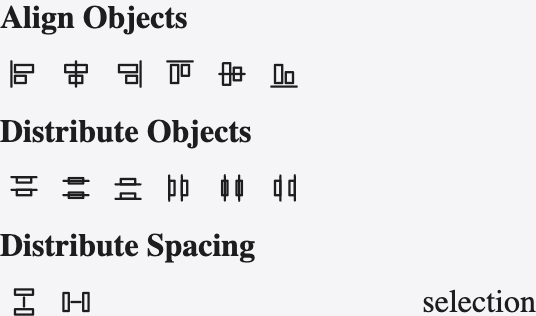
Align lines up two or more objects by their edges or centres, spreads them so their centres or edges are evenly spaced, or sets an exact gap between them. The menu at the foot chooses what to align to — the selection as a whole, the artboard, or a key object you nominate — so the same buttons do relative or absolute alignment.
Pathfinder
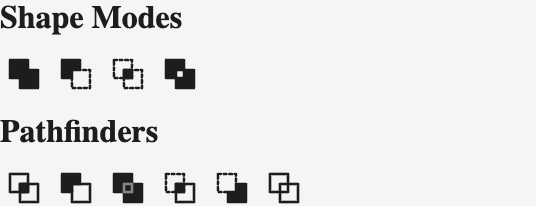
Pathfinder builds one shape out of several. The top row is the shape modes — unite, minus front, intersect and exclude — held together as an editable compound; the second row is the one-shot pathfinders — divide, trim, merge, crop and outline — that cut and weld the paths for good.
Magic Wand
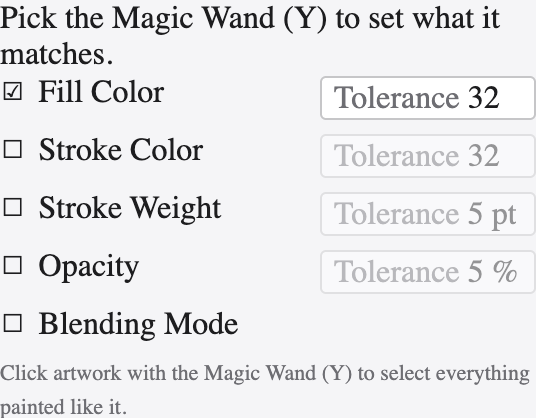
These settings tune the Magic Wand tool. Turn on the properties it should match — fill colour, stroke colour, stroke weight, opacity or blending mode — and set a tolerance for each, so one click selects every object close enough to the one you hit.
Transform
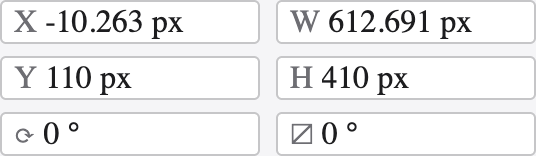
Transform reads out the selection's exact position, width and height, rotation and shear, and lets you type new values instead of dragging. A reference-point grid says which handle the numbers are measured from, and options fix the aspect ratio or scale strokes and effects along with the object.
Appearance
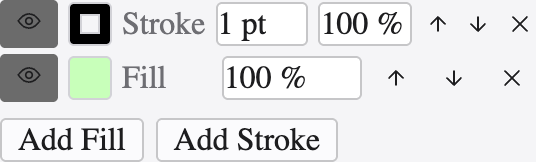
Appearance is where a single object's whole look is built and edited. An object can carry more than one fill and stroke, stacked in order, each with its own colour, opacity and live effects, and the panel shows that stack top to bottom. Add and remove rows, drag to restack, hide a row with its eye, and click any live effect to reopen its dialog — nothing is baked, so the artwork stays editable.
Image Trace
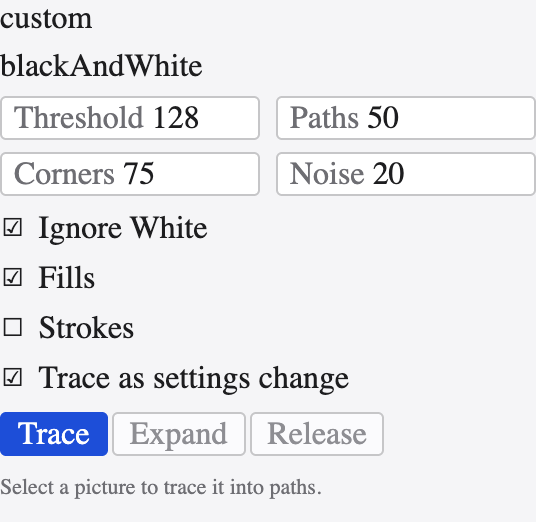
Image Trace turns a placed picture into vector paths. Pick a mode — black and white, grayscale or colour — and a preset, then tune the threshold or the number of colours, how tightly paths hug the pixels, how corners are cut and how much speckle to ignore. A full account is on the Image trace page.
Transparency
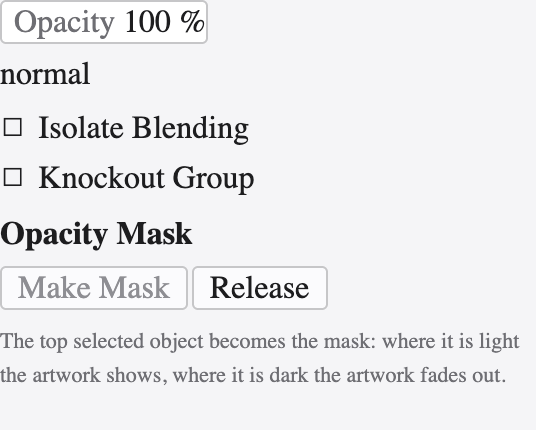
Transparency sets how an object blends with what is behind it: its opacity and its blend mode — multiply, screen, overlay and the rest. It also holds opacity masks, where a second piece of artwork's lightness decides where the object shows and where it fades, with options to clip and to invert the mask.
Attributes
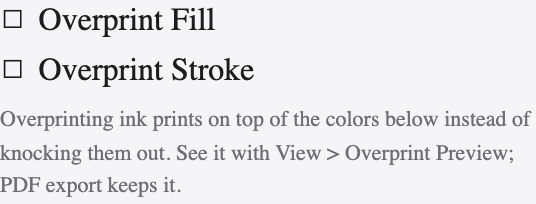
Attributes gathers an object's low-level flags: whether the fill or stroke overprints for print, and — for a compound path — whether it uses the non-zero or even-odd rule to decide which parts are holes.
Graphic Styles
A graphic style is a whole appearance — its fills, strokes and effects — saved as one thing. Drop a style onto an object to give it that look at once; edit the style and every object wearing it updates together.
Brushes
The Brushes panel holds the brushes that paint along a path — art brushes that stretch a shape end to end, scatter brushes that strew copies, and pattern brushes that tile artwork around corners. Apply one to a stroke and the path keeps its editable spine while the brush draws its body.
Glyphs
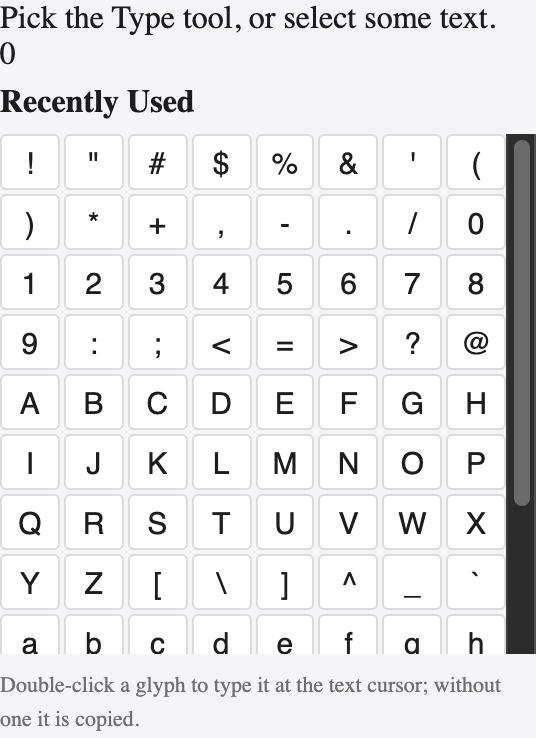
Glyphs shows every character in the current font — including the ones with no key on the keyboard, such as fractions, ornaments and alternates. Double-click a glyph to drop it into the text you are editing, and filter the grid to a category to find one quickly.
Asset Export
Asset Export collects the pieces of artwork you ship over and over. Drop objects in, then export them all in one go, each at the sizes and formats you set — PNG, JPEG, WebP, SVG or PDF — without touching the artboard.
Variables
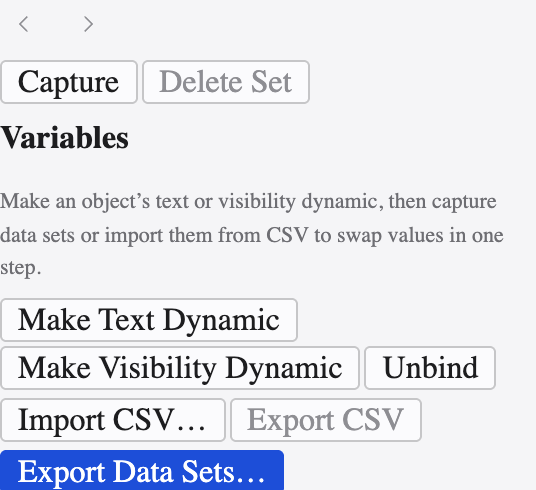
Variables make a template you can drive with data. Bind an object's text, its visibility, its position or a linked image to a named variable, then feed the document a set of values to stamp out many versions of the same design from one master.
Symbols
A symbol is a piece of artwork you place again and again as lightweight instances. Edit the symbol once and every instance updates, which keeps a document with hundreds of the same icon or tree both small and consistent.
Patterns
The Patterns panel holds the tiles used as pattern fills. Make a tile from selected artwork, set how it repeats — by grid, brick or hex offset — and it fills any shape seamlessly; the tile stays editable, so a change to it re-tiles everywhere it is used.
Grid
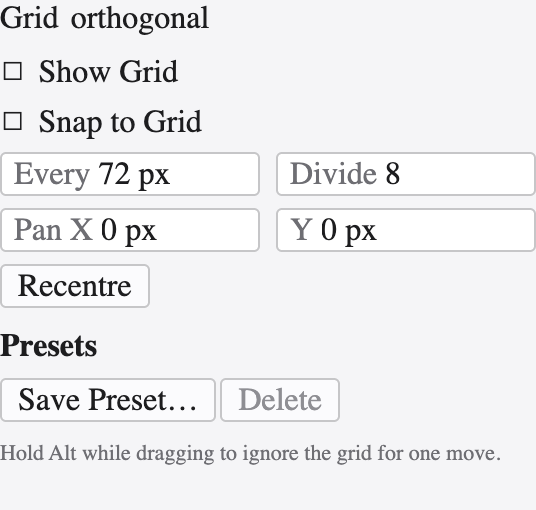
Each board carries its own grid, and this panel sets it: the kind — square, isometric, hexagonal, oblique, golden or perspective — and its spacing, how many subdivisions sit between the main lines, its angle and where its origin starts. The Grids page covers each kind in full.
Navigator
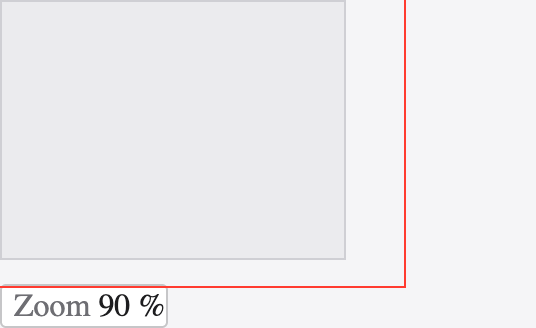
Navigator shows the whole document in miniature with a box marking what is on screen. Drag the box to pan, or use the zoom slider under the thumbnail to zoom — handy for finding your way around a big, zoomed-in canvas.
Info
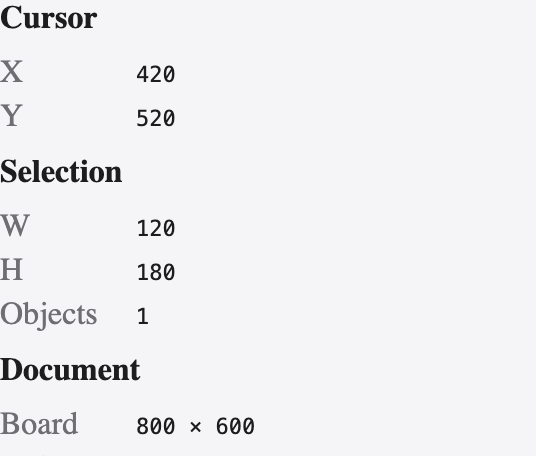
Info is a live readout: the cursor's position, the size of a selection or the object being drawn, the distance and angle of a drag, and the colour under the pointer. It is the panel to watch while you draw and measure.
Document Info
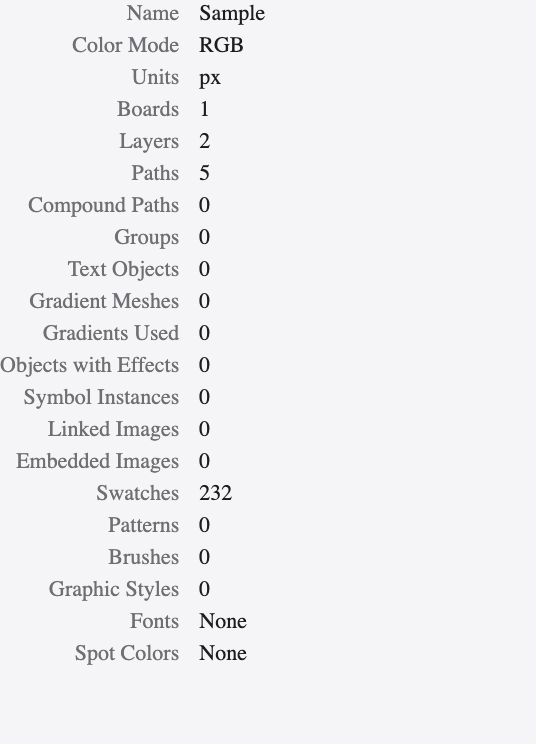
Document Info summarises the file: its size and colour mode, and counts of the objects, paths, fonts, gradients, patterns and linked images it holds. It is the quick way to audit a document before handing it on.
History
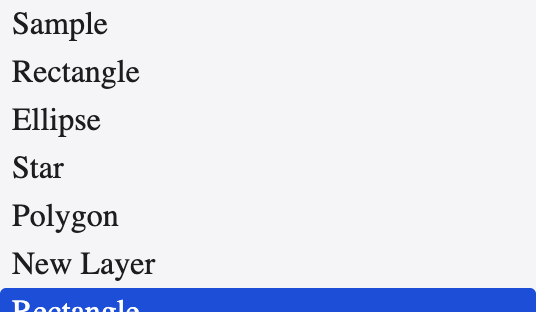
History lists your recent edits as a stack of steps. Click one to jump the document back to that moment; carry on from there and the steps after it are replaced. It makes undo and redo something you can see rather than guess at.
Actions
Actions records a sequence of commands so you can replay it on other artwork with one click — a small automation for the edits you repeat. Group related actions into sets, and play a whole set in order.