 Scis
ScisProperties, Layers & Boards
Scissor's panels live in a dock down the side of the window, grouped by what they do. This page covers the first group — the three panels you keep open most of the time: Properties, which follows whatever you have selected; Layers, the map of everything in the document; and Boards, the list of artboards. Open any panel from the Window menu, or click its icon in the dock.
Properties
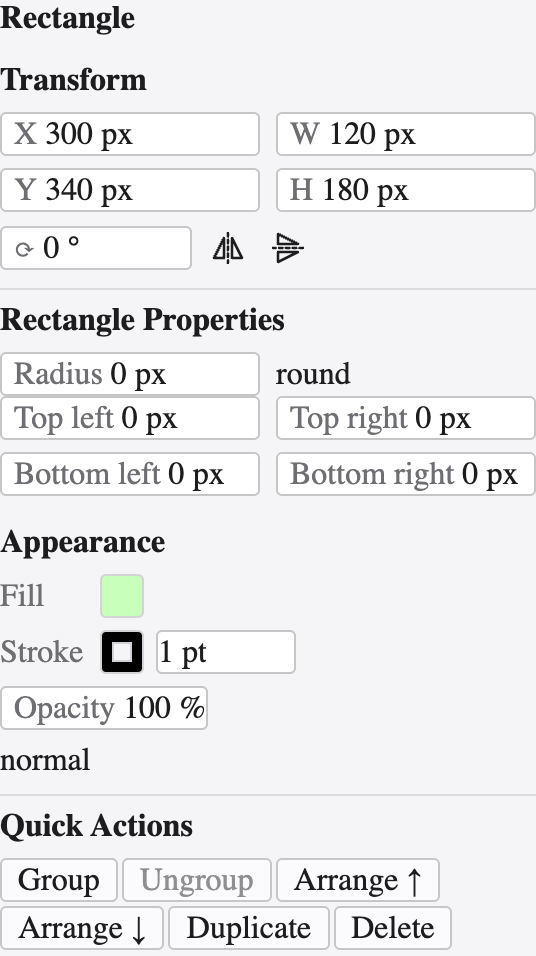
Properties is the panel that changes with you. Select nothing and it shows document settings and the current tool's options; select an object and it gathers the controls you reach for most into one place, so you rarely have to go hunting for a separate panel.
For a shape it shows the Transform block — position, width and height, rotation and flips — then any live parameters the object carries, such as a rectangle's corner radii or a star's point count. Below that sits a compact Appearance section for fill, stroke weight and opacity, and a row of Quick Actions: group and ungroup, arrange, duplicate and delete. Actions that don't apply are dimmed rather than hidden, so the panel's shape stays steady as your selection changes.
Layers
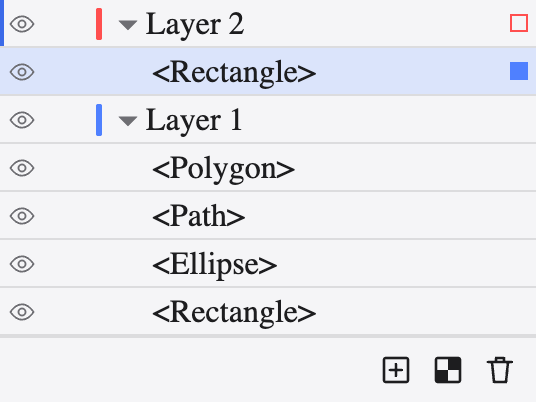
Layers is the outline of the whole document: every layer, group and object, in stacking order, top of the list nearest the front. Each layer carries a coloured chip — the colour its selections and handles are drawn in — and every row has an eye to show or hide it and a lock to keep it from being edited.
Twirl a layer open to see the objects inside; drag rows to restack or to move an object into another layer. The hollow circle on the right of each row is its target — click it to select that object, or to aim an effect or an opacity mask at it. The buttons along the foot make a new layer, a new pixel layer, and delete the selected rows.
Boards
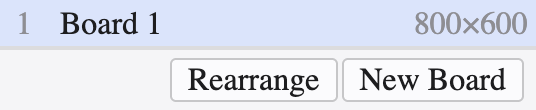
A document can hold many artboards — the printable, exportable pages that sit on the endless canvas. The Boards panel lists them in order; click one to bring it into view and make it current, double-click its name to rename it, and use the panel to add, duplicate, reorder and delete boards. It pairs with the Artboard tool, which draws and resizes boards directly on the canvas.